Windows MultiPoint Server 2011 | Part 1: Introduction

Windows MultiPoint Server 2011 is an awesome product from Microsoft. MultiPoint Server is designed as a solution to provide what I’ll call “one-to-many” or “shared” computing. By “one-to-many” I mean that MultiPoint Server runs on one server and provides the computing power for up to 20 users at the same time.

What are some of the possible usage scenarios? With the ever shrinking education budgets here in the United States, schools are having to find new ways to do more with less. Instead of buying a lab full of workstations, schools can buy MultiPoint Server and thin client hardware at a fraction of the cost. Another example is a small business looking to keep their costs low, can deploy MultiPoint and thin clients to all their employees. The possibilities are endless.

I’ve included below a slide listing the cost of MultiPoint Server. Note that this is for the software only and does not include server hardware or client hardware and is based on Volume License channel pricing.

WMS2011_Pricing

In Part 2, I’ll walkthrough the initial installation and setup of MultiPoint Server 2011.

DataCore DriveHarmony now available in Beta

Today, DataCore has released a beta of their DriveHarmony software for Windows Home Server 2011.

This beta release will expire after 30 days, and is NOT meant for production use. DO NOT use production data with this release.

I’m downloading right now and will have more later. If you want to download the beta, click the link below.

Pro tip–The one where cfg.ini would not be recognized

Figured I’d post this in case anyone else runs into this issue. I was performing an unattended install of Windows Home Server 2011 and the setup failed. I tried to use the same cfg.ini file again, however, setup didn’t like the file the second time around. Knowing that I hadn’t changed anything, I opened the file and noticed something strange. There was an additional line that Setup adds to the file once its used it.

The line added is located in the [WinPE] section and is called Processed=true.

In my testing, removing this line will allow the cfg.ini file to be used again.

image     image

                          Before setup runs                                       After setup runs

This tip applies to:

  • Windows Home Server 2011
  • Windows Small Business Server 2011 Essentials
  • Windows Storage Server 2008 R2 Essentials

Online help resources for WHS 2011 / SBSe 2011 / Storage Server R2 Essentials

This one’s a short post. Here are the direct links to the online help sites for Windows Home Server 2011, Small Business Server 2011, and Storage Server R2 Essentials.

Windows Home Server 2011 – http://onlinehelp.microsoft.com/en-us/windowshomeserver2011

Small Business Server 2011 Essentials – http://onlinehelp.microsoft.com/en-us/sbs2011essentials/

Storage Server 2008 R2 Essentials – http://onlinehelp.microsoft.com/en-us/storageserver2008r2/

Why you should consider Windows Phone

In talking to different people about why they should own a Windows Phone, I did some research and have found that no one has written a post on this topic.
First, however, I want to clear up some common misconceptions that I hear in the marketplace.

    1. Windows Phone is NOT Windows Mobile. These are two completely different mobile operating systems, and Windows Phone has been redesigned from the ground up.
    2. Windows Phone can’t be any good because it doesn’t have as many apps as iPhone or Android. If you’re rating an entire platform solely based on the number of apps in its marketplace, you’re doing it wrong. All the platforms have really good apps and all the platforms have those apps that are full of epic fail.
    3. Don’t pay attention to what the sales reps at the carriers say. They don’t know of which they speak. I visited 10 T-Mobile, AT&T, and Verizon stores here in Phoenix, and only one guy from one carrier even knew what Windows Phone was and knew correct factual information about it.

Second, set aside all preconceived notions about a) Windows Phone and b) Microsoft.

Alright, now that the disclaimers are out of the way, let’s move on to the fun stuff.

Peoplehub_US_webSo, what is Windows Phone 7? Here’s the answer. Windows Phone 7 is Microsoft’s new mobile operating system. Redesigned from the ground up with all new features and an innovative user interface, Windows Phone 7 is the newest entry in the ever expanding smartphone market.

Windows Phone 7 features a UI called “Metro.” Metro is designed to be a glance and go interface. By bringing the information that matters the most (unread emails, missed calls, unread text messages) to the forefront, users don’t have to spend a lot of time searching for information. A key part of Metro, is Live Tiles. Live Tiles take the tile for an application on the home screen and provide always update information. Some examples of this usage are The Weather Channel app which provides the current temperature on its tile and Beezz which will show you the number of unread tweets in your timeline. If you really want to dive in and learn more about Metro, I highly recommend reading Microsoft’s UI Design and Interaction Guide for Windows Phone 7 document. It goes into a lot of detail about what Metro is.

What sets Windows Phone 7 apart from the pack are its features. Let’s look at those now.

  • Zune integration – Every Windows Phone is a Zune and has the ability to connect to Microsoft’s Zune Pass service. Unlimited music across your phone (on Wi-Fi and 3G), your computer, and Xbox 360. How cool is that?
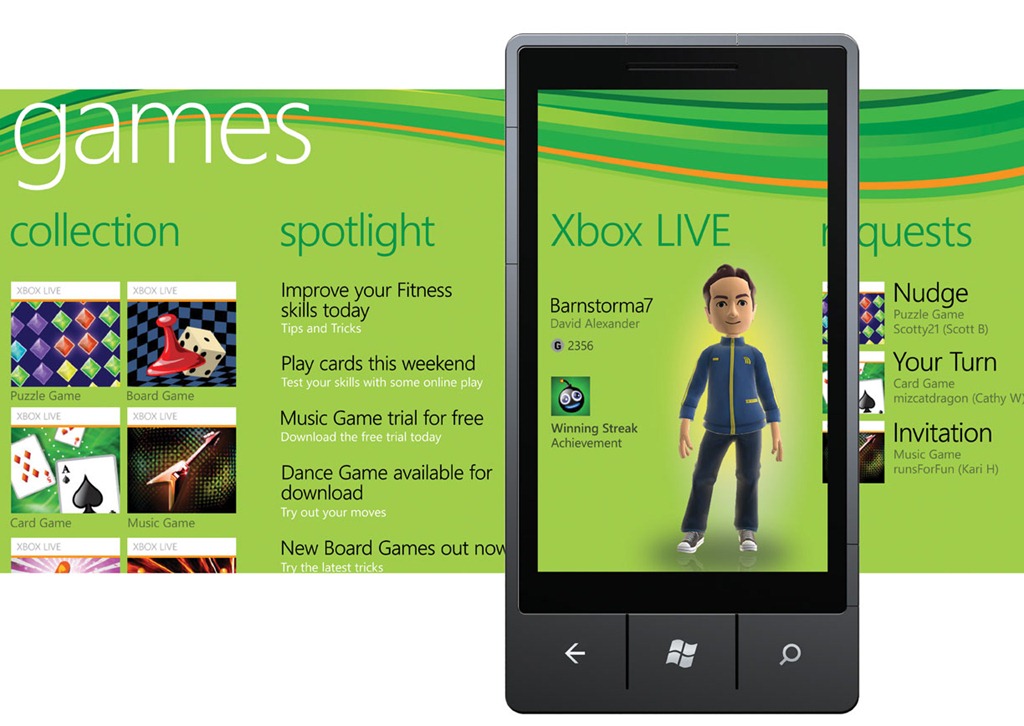
  • Xbox Live integration – Many games available for Windows Phone tie into Xbox Live. ThisGameshub_US_web means that things like achievements, avatars, leaderboards, messaging and more are available directly in Windows Phone.
  • Cloud integration – Windows Phone integrates with Facebook, Google, Windows Live services like Hotmail and SkyDrive, and coming in the fall is integration with Facebook chat, Windows Live Messenger and Twitter. Contacts are automatically synced to Windows Live or Google, and pictures can be sent to SkyDrive as they are being taken.
  • Bing integration – Every Windows Phone is required to have a dedicated search button. This search button connects to Bing and provides an awesome search experience. Using the built-in GPS, Bing provides local search and can then provide driving directions to your destination. Bing also provides web and news searches as well.
  • Office integration – Windows Phone features native Office integration. Word, Excel, Powerpoint, OneNote, and Outlook are all available on Windows Phone. This provides native support for viewing and editing documents, spreadsheets, and presentations on the go. For those in enterprise environments, access to SharePoint document libraries is also integrated.
  • Voice Search – With Windows Phone, you can use voice search commands to call someone, locate a business in your neighborhood, or open applications. My favorite part about this is that when you want to locate a business in neighborhood all you have to say is “Find a McDonalds in Phoenix” and it will open Bing directly to the local pane and show a map of the McDonalds near you. It’s quick, it’s easy, it’s simple.

Microsoft has done a lot of things right with Windows Phone 7. They’ve provided deep rich integration with the services we all use on a daily basis, designed an innovative user experience, and with today’s announcement of what is coming in the next release of Windows Phone (available for all Windows Phone devices), have upped their game even further.

I strongly recommend that you visit your local cell phone provider and get hands on with a Windows Phone.

More Information:

Microsoft’s Windows Phone website – http://www.windowsphone.com

Review: HTC Surround

Introduction

The HTC Surround, introduced November 9th, 2010, is a Windows Phone 7 device for AT&T (US) and Telus (Canada). The device features 16GB of internal storage and is powered by a 1 GHz Qualcomm QSD8250 processor along with 448MB of RAM. A key differentiator for this device is the speakers powered by Dolby mobile technology and SRS. For photos and videos the device features a 5MP camera and the ability to record video at 720p.

Hardware

The Surround is in my opinion, one stout phone. Weighing in at about 6 ounces, the phone doesn’t feel like it would fly out of your hand, but it is also not so heavy that it becomes a burden to hold to your ear while talking. The slide mechanism to uncover the speakers is not flimsy, but fairly tight. I haven’t used the phone long enough to determine if the slide weakens over time, but overall I’d say that the hardware itself is pretty solid. Because this phone is called the “Surround” I had to test the speakers. In my opinion, they aren’t the greatest mobile phone speakers. They are definitely louder than the ones on my HTC HD7, but the sound enhancements seem very gimmicky. If you are only considering buying this phone for the speakers, you’ll be disappointed. For video and camera quality, I was pleasantly surprised. The camera takes decent pictures, and for recording video, the quality is as good as it can be at 720p.

Software

The Surround runs Windows Phone 7, and comes stock with the original (what I call 1.0) release of the operating system. At this point, AT&T has approved the “NoDo” (Copy and Paste) update for the device, so updating the software through Zune was not an issue. For this particular device, there was an included update from HTC for the device as well, but no details were provided on what it fixes. For running Windows Phone 7, performance was very sub-par. Many times, the device would lag when a phone call was received and I had to pull the battery and reboot several times in my week of testing. I was around a few others who have also just received HTC Surrounds who were seeing these same issues. Because of this, I’m inclined to believe that the device is underpowered at 448MB. Other than these issues, the OS and apps installed on the device performed as expected with some lag due to the small amount of memory in the device.

Network

In the interest of full disclosure, the device is designed for the AT&T network, but I SIM unlocked it for use on T-Mobile, so I was limited to the EDGE network, so I can’t accurately test the performance of the phone on a 3G network. However, call quality was very clear and very loud. I had no issues hearing what callers were saying and they had no issues hearing what I was saying.

Conclusion

In my opinion, the HTC Surround is fairly decent phone. However, it is does have issues. The biggest issue that I’ve experienced is the lack of performance with the OS. The freezing and the constant lock ups make the device near unusable. For being advertised as a phone with Dolby and SRS technology behind the speakers, it’s a gimmick. Sure, the speakers don’t sound tinny, but watching a movie from Netflix on the device won’t be a magical and memorable experience. I liked the photo and video quality of the Surround, which is a major plus. I like the overall size of the device. It’s not too big, not too small, it’s just right. If HTC, Microsoft, and AT&T can all work together to solve the performance issues, I see the Surround as a great device in the Windows Phone lineup.

My rating

I give the HTC Surround 3 out of 5 stars. I like Windows Phone 7, the size and weight of the device, and the photo / video quality. The speakers are too much of a gimmick and the performance issues are a concern.

Photos

Technical Specs (as tested)

Connectivity

GSM850/900/1800/1900 MHz

Weight

6 oz.

Dimensions

4.72″ x 2.44″ x 0.54″

Battery Life

Talk: 4 hours / Standby: 264 hours

Display

3.8” LCD – 480x800px

OS

Windows Phone 7 (updated to NoDo through Zune software)

Storage

16GB internal microSD storage

RAM

448MB

Hands-On Labs at TechEd 2011 | How does it all work?

This week at TechEd 2011, an attendee favorite are the Hands-On Labs. I met with the good guys from XB Velocity to get a behind the scenes look at how everything works.

At the highest level, the labs are stored in an on-site private cloud and then accessed through Internet Explorer on each PC in the lab. Lets dive in and look at things at a deeper level.

What’s the hardware involved?

What’s in each blade?

  • 2 physical processors each with 6 cores (Intel Xeon X5670, 2.93 GHz, with Hyper-Threading)
  • 128GB of RAM
  • 2 146GB hard drives
  • 1 320 GB HP IO Accelerator Card, powered by Fusion IO (provides 150,000 IOPS, Read speed 750MB/s | Write speed 550MB/s)
  • Windows Server 2008 R2 Datacenter SP1 w/ HyperV

How’s the infrastructure managed?

  • System Center Configuration Manager 2007 R2 – Used for reporting and deploying updates to lab clients
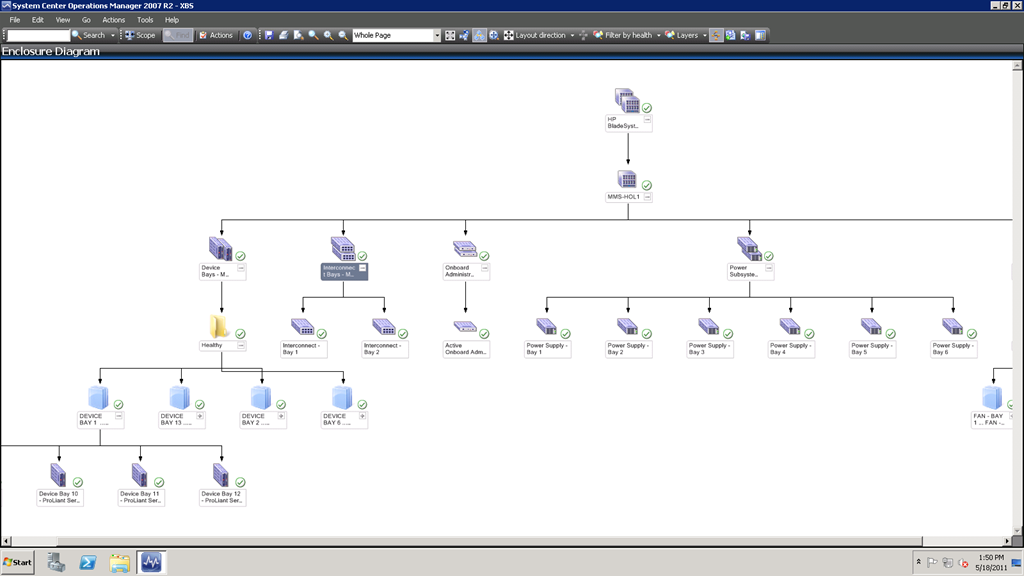
  • System Center Operations Manager 2007 R2 – Used to monitor all servers involved
  • System Center Service Manager 2010 – Used to run help desk and provide incident routing during the show
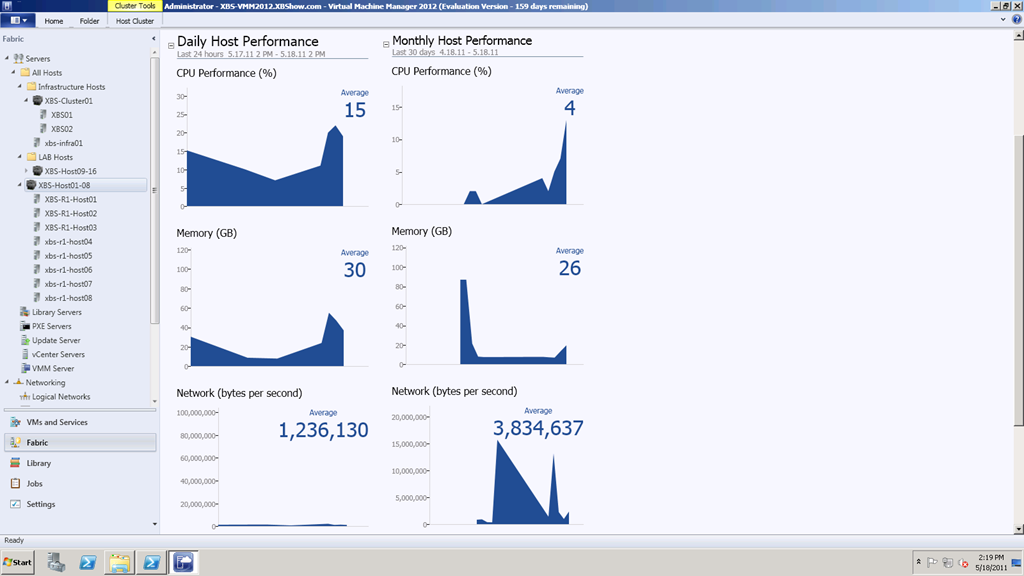
  • System Center Virtual Machine Manager 2012 Beta – Used for monitoring lab VMs and managing  / monitoring infrastructure VMs

The Nitty Gritty:

The hands on labs this year are all running on a private cloud setup using the aforementioned hardware and software. This private cloud serves 350 users located in the lab area. All of the base lab VHDs (Virtual Hard Disks) are stored on the SAN, and differencing disks that point to these base VHDs are stored on each blade’s IO Accelerator card. When someone wants to start a lab, a copy of the virtual machine (already in a saved state for quick starts) is made, pointed to a differencing disk on the IO Accelerator, and the VM is then turned on and available to the end user.  By doing it the this way, the labs are able to be run at optimal speed and there is little risk of any damage to the Base VHDs stored on the SAN. For better memory management within the VMs, Dynamic Memory is enabled to allow the VMs to take more RAM if they need it, and to give up RAM they don’t need.

End-User Experience:

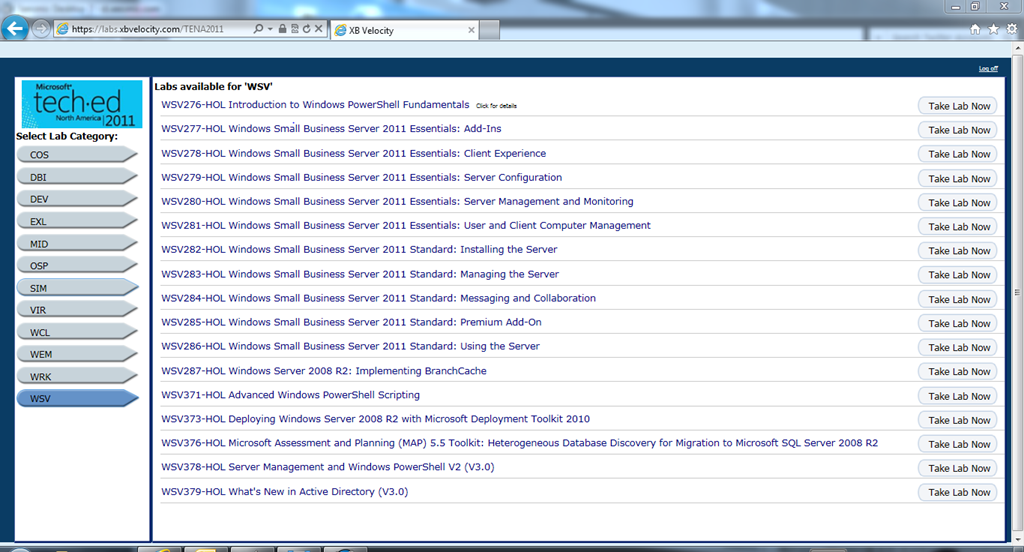
When the user sits down in front of a lab station they are presented with a list of categories and labs to choose from. When they find the lab they click the Take Lab Now button and that begins the backend VM creation and startup process. Once the VMs have launched, another window opens on the second screen with the lab manual. If there are multiple VMs involved, there is tabbed navigation between each of the lab’s VMs. After the user finishes the labs, the VMs are shut down and then destroyed, or if a user leaves without ending their session, the system will automatically destroy the VMs after 40 minutes of inactivity. I’ve included some screenshots and photos of the setup below.

IMG_0021 IMG_0014

The Serverquarium at TechEd 2011                          Lab menu on left, lab manual appears on right

IMG_0016 image

Running lab at TechEd 2011                        Screenshot of the Lab selection menu


image IMG_0032

Screenshot of running lab showing multiple VMs                          Hands-on Lab Private Cloud

IMG_0030 IMG_0028

Inside of one of the blades                                       320GB HP IO Accelerator Card

Blade Enclosure SCVMM2012(beta)

SCOM diagram of BladeCenter enclosure              Hyper-V performance metrics

HP IO card perfmon mosaic

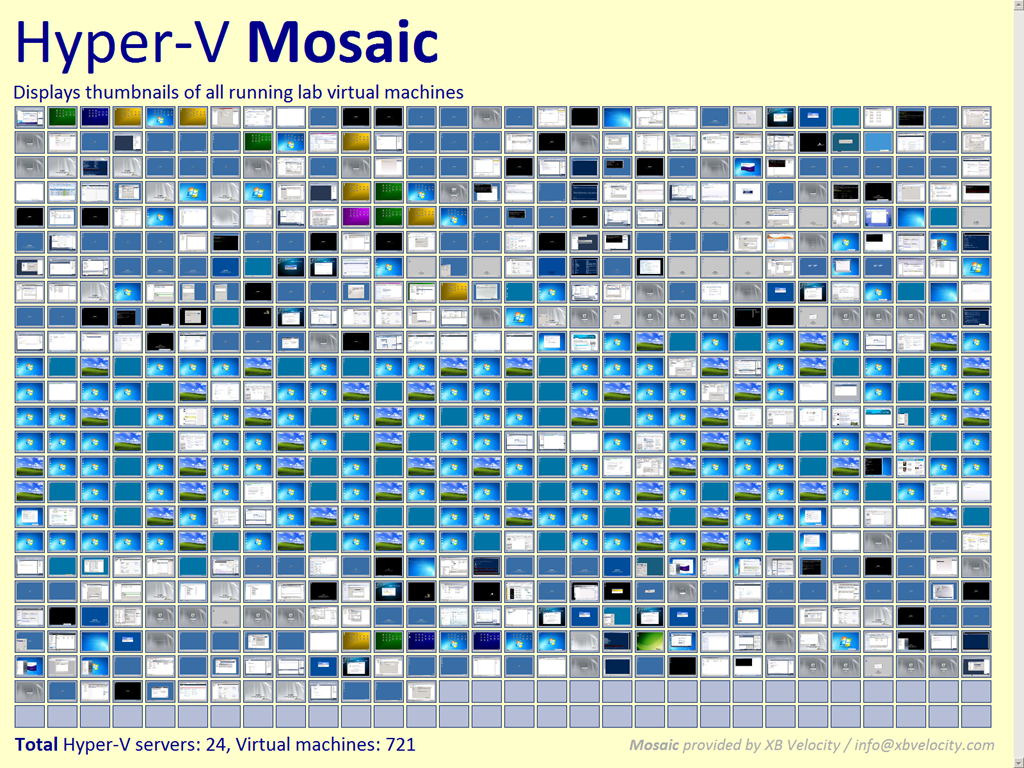
HP IO Accelerator Card Performance                  Mosaic showing all running VMs in HOL area

Windows Intune–What is it and why should you care?

One of the major focuses this week at TechEd and for Microsoft in general is cloud computing and cloud based services. One of the services getting some real love this week is Windows Intune. In this post I’ll be introducing the Intune service and explaining how it can benefit you.

Windows Intune is a service that provides security and management capabilities through the cloud and a web-based management console. With Intune, you get malware protection, policy management, system health alerting and more.

Key Features:

  • Centrally manage deployment of Microsoft updates
  • Malware protection using the same engine as Forefront Endpoint Protection
  • Provide Remote Assistance to your users from anywhere
  • Track PCs and track software license usage
  • Centrally manage firewall and malware settings for PCs connected to the service

I’ve just started using the service today, but what I like I about it is the usability. Unlike deploying Windows Server Update Services, Forefront Endpoint Protection and System Center Operations Manager locally to achieve the same integration, managing Windows Intune is a breeze. Most of the hard stuff is done for you, freeing you up to take care of what matters the most.

Installation of the Intune client is a breeze. One click to download a ZIP file that has the executable and necessary files to associate the client, and then installation takes place seamlessly and silently.

Windows Intune supports Professional, Enterprise and Ultimate SKUs and is reasonably priced at $11 per device per month.

TechEd North America 2011–What’s been announced on Day 1?

Here’s the no frills quick and dirty run down on some of what was announced today at TechEd 2011.

Windows Azure:

  • New May CTP of Windows Azure AppFabric with new messaging capabilities for publication and subscription. Available today.
  • Coming in June, a CTP of AppFabric Application Manager and Developer Tools with enhancements to Visual Studio, new runtime capabilities for automatic deployment and application monitoring, and a new AppFabric Composition Model. Expected availability in June.
  • Coming later this summer to SQL Azure, an enhancements to the web based management portal, better schema management, new service to manage SQL Azure databases through OData, and the integration of import and export features in the management portal. Features coming in a service update later this summer.

System Center:

  • Demoed System Center ‘Concero’ during keynote for managing private cloud resources and public cloud resources.
  • System Center Orchestrator 2012 (Formerly Opalis) an IT process automation platform for orchestrating workflows across systems. Expected availability – Beta in June 2011
  • Demoed System Center Connector for Visual Studio to quickly escalate issues to engineering teams for review and fixes if necessary. In beta today, final release date not yet known.

Forefront:

  • Forefront Endpoint Protection 2012 announced today, built on System Center Configuration Manager, and designed to allow IT to use existing infrastructure to deploy and manage endpoints in their networks. In beta today, final release date not yet known.

Windows Phone 7:

  • Lync 2010 for Windows Phone was shown off and will be available on the Windows Phone Marketplace around the time Mango is released.
  • Out of box support in Mango for Office 365
  • Conversation view, information rights management, pinnable email folders, complex password support and server side search for Outlook Mobile.
  • All features coming with Windows Phone “Mango” around Holiday 2011

Office 2010 and SharePoint 2010:

  • Service Pack 1 for both Office and Sharepoint 2010 will be released in June, with improved Internet Explorer 9 functionality, improvements to Office Web Apps, support for Google Chrome, and updates for other products in the Office 2010 family. Service Pack 1 will be released June 2011.